Monday, February 23, 2015

Orphan Transactions - Changing the Dimension group of a Standard Cost Item


Update conflict. The standard cost does not match with the financial inventory value after the update. Value = ###.##, Qty = ###.##, Standard cost = #.##

This is an error we come across quite many times in AX 2009, while trying to post transactions against an item. Most often, it is during Purchase Order posting. While the cause is clear, it is still a dilemma as to how the system runs into this situation.

The Cause:


In AX, users can set Inventory Dimensions for an Item. These dimensions, once set, and once there are transactions created with them, are not changeable. In most cases, the system throws an error while trying to change the Dimensions on the Item where transactions exist for the item.

Note: There need not necessarily be 'open' transactions against the item. The default behavior is that that as long as the item is 'used' in any transaction, irrespective of whether it is open or not, the system will not allow the update.

In rare cases, and absolutely at random, the system allows the change in Dimension even when transactions exist for the item.
There is no definite reason as to why this happens. But nonetheless, it happens. When there is a Batch dimension attached to the item, it becomes a greater concern.

The Issue:


The Items for which this error occurs had the Inventory dimensions changed from one that had a Batch dimension to one that did not. These transactions then become "bad" transactions in the system and cause this error.

Depending on the item, there will either be a negative inventory (physical negative inventory enabled on the Item model Group) or there was a Positive inventory in the system, for the quantity available.
Ideally the inventory must be zeroed out before any such update is done. When trying to update the Inventory for these items, the system creates an issue. Since the Batch Dimension is no longer an active Dimension for the Item, transactions cannot be posted with a Batch number. The transactions that were already existing in the system are now "orphaned" by this update. The transactions with the batch were duplicated in the system at the same location, but without the batch dimension.

To add to the confusion, the Standard Cost does not update properly, for all the lines of a particular item in the InventSum. This is again because there are some transactions with Batch Dimension active and some without. The Standard Cost does not understand how to handle these "Orphaned" transactions and the issue compounds.

The biggest issue in this case is that the Dimensions can be changed a long while back or more recently, and the Standard Cost update will sometimes not throw any error (again, there is no logical explanation to this scenario). The point is, the updated could have happened long before the error throws up (In my most recent case, the update was done 3 years ago.!!)

How the system Works:


While looking up the totals for an Item, AX queries the InventSum table or the InventTrans table using some predefined macros. The #InventDimJoin macro queries the InventDim table and the InventDimParm table to fetch the total quantity for the Item based on the Inventory Dimensions that are Active for the item.
Here, the "orphaned"/ "bad" transactions get added into the non-batch transactions, with the same active transactions (but without batch dimension). Since Batch number is not an active dimension anymore, it gets ignored.

When the totals are calculated, some of the transactions match the Standard Cost for the Item, while some don't. If the Site-Warehouse where the transaction is being updated matches with the Standard Cost, the system allows the transaction. In case there is a mis-match, the error occurs.

The Solution:


The issue occurs at random and there is no exact reason for the system to be in this situation. There is, however, a solution to the above issue.
Do note that the solution may not always fit the problem. It is one of the possible ways to fix the issue at hand. (The Debugger is a handy tool in most situations).

 - First, evaluate the existing transactions in the system and determine the cost for each of the transactions.
- Use the fill utility to change the item's dimension group back to one that uses the Batch dimension.
Here, we are updating the dimensions for the transactions in the InventSum table for the particular Item. By using the fill utility, we ensure that the check for the Active dimension is ignored..
- Once this is done, the transactions can be updated in the system. Do ensure that the Standard Cost for the Item matches with that on the "orphaned" transactions. (The Standard Cost may have to be updated in this case)
- Use the Item Journals to add/remove the Inventory of the affected items as required.
- Use the fill utility to update the dimension group.
- Move this "updated" inventory back with appropriate costs, and without batch numbers this time

Note: The system considers both the Quantity and the Cost while building up the On-Hand for the Item. If the totals for both are not absolutely zero, the transactions will still exist in the system and there will be a record for it. This will lead to the same error in the future.

Workaround:


There are some cases where only one transaction is affected for an item. In such a case, first, determine exactly which transaction is affected for the item.

Then, go to the InventSum table and narrow down to the transaction. Here, in the PostedValue field, update the cost to match the Standard Cost of the Item. Ensure to take into consideration the Quantity posted against this particular transaction and make the update accordingly.
Be extremely careful while making the update. The InventSum is a core table for all item transactions and any error will have huge impacts in the system.

Caution: Do not directly update the Costs and Dimensions in the Live/ Production system. Try the update in the test/ development system first to check if all the transactions are being updated correctly. Then, take a DB backup of the Live system and then update the costs in the Live system.
Also ensure to totally nullify the "orphan" transactions. Otherwise the error will crop up again.

Again, this is just a suggestion as to what needs to be done. Consultant discretion is advised.

P.S. Please leave comments below in case there is any other way to fix the issue.


Friday, February 13, 2015

Hand Mark - Voucher in use


Settling Open Customer and Vendor transactions is a regular process for businesses. However, in certain cases, it creates a discrepancy which throws the "Voucher in use" error.

The "voucher" that is causing the error is identified by a Hand mark against it in the Open Transactions editing form. (This is for both the Customer and Vendor).

The Cause:


There are several reasons for the Hand-mark in the Is Marked column:
-  User started to process the settlement, but deleted the adjustment voucher and did not uncheck the transaction. Hence the transaction remained
-  The marking was done for settlement, but there was an update conflict while processing the payment. In this case, the original transaction remained and the Offset transaction was lost
-  A temporary record created in the database is not released after the form is closed. The reasons for this discrepancy:

  • Power interruptions cause the transactions to be incorrectly recorded in the database
  • Connectivity issues between AX client and AOS


The Solution:


One way is to trace the User ID that was used to "mark" this transaction and with that ID, un-mark the transaction. This is cumbersome when there are many users who access this form.

Second, is to remove this hanging transaction from the system from the Database itself. To do so, follow the steps below:

  • For the affected transaction, get the RecID (take some technical help if you do not know how to do so). The RecID is an important identification to locate the transaction in the Database
  • Navigate to the SpecTrans table in the AOT. ( The SpecTrans table keeps track of the marked transactions by creating a record for the transactions)
  • Filter the RefID field with the value of the RecID of the affected transaction
  • Delete the record 
  • Save, Compile and Synchronize the table

Go back to the form to verify the marking has been removed.

Caution: Take care while noting the RecID of the affected transaction and navigating to the record in the table. In case any other transaction is removed, it will cause a discrepancy in the transactions that are being processed or already processed for settlement.

The issue may differ on a case-to-case basis. Consultant discretion is advised while exercising the solution.

P.S. If there are other work-arounds for the scenario, do leave your comments below.


Thursday, February 12, 2015

Exchange Adjustment - AX 2009

When multiple currencies are used, the exchange rate for the original transaction currency might differ from the exchange rate that is used during the conversion to the accounting currency. To recognize these differences in the exchange rate, the amounts in the main accounts have to be adjusted. The process that is used to make those adjustments is called a foreign currency revaluation or an Exchange Adjustment.

Revaluation can be done in Accounts Payable, Accounts Receivable and General Ledgers. However, the General rule of thumb is to perform the revaluation in the Accounts Payable and Accounts Receivables.

It is not suggested to perform Revaluation for Vendor and Customer Transactions in the General Ledger Module as these transactions will not reflect in the AP and AR modules respectively. Hence, Currency Revaluation is done for Accounts Payable and Accounts Receivables modules.


Prerequisites:

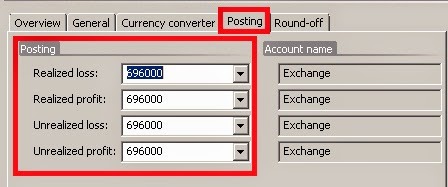
Before you can perform an exchange adjustment, the profit and loss ledger accounts for exchange adjustments must be. This setup is done in the General Ledger

Path: General ledger >> Setup >> Exchange rates >> Posting tab.

These accounts are essential to be setup in case when the organisation is dealing with multiple currencies.
Note: It is not necessary to use the same accounts for all the postings. Multiple accounts can also be used, depending on Company policy.

Revaluation process will generate unrealized gains/ losses whereas Settlement will generate realized gains/ losses.

Once these accounts are setup, the Exchange Adjustment can be carried out. These accounts must be setup for all the currencies that will be used.

Exchange Adjustment:

The procedure to run the Exchange Rate Adjustment is the same in Accounts Payable and Accounts Receivables Modules. The Exchange Adjustment is run from the Periodic Section in both the Modules.

Path: Accounts Payable >> Periodic >> Exchange Adjustment

Simulate an Exchange Adjustment:

Simulation is carried out to analyze the adjustments that will be made to the respective accounts after Revaluation. The simulation generates a report with all the entries and adjustments that will be made when the actual adjustment is carried out.

To run a Simulation, click on Simulation Button on the Exchange Adjustment Form
The following parameters need to be selected:
  • Method
  • Considered Date
  • Date of Rate

In the Method field, the following options are available:
  • Standard - Make exchange adjustments based on the Exchange rate used on the date specified in the Date of rate field.
  • Minimum - Make an exchange adjustment if a loss occurs, but not if a profit exists.
  • Invoice date - The program offsets any exchange adjustment that is not already offset, as on the date of Invoice. This causes the transaction being valued at its original value.
The Considered Date is the Date up to which the system has to fetch the “Not Settled” (Open) transactions to perform the exchange adjustment for.

The Date of Rate is the date to be considered for the exchange rate.

The default method is Standard.
The Considered Date and Date of Rate are usually the same date.

After the parameters are selected and the dates are entered, Click on OK.
The Simulation will generate a report with the adjustments that will be made if the Exchange adjustment is run. This report is used to analyze the differences and postings that will be made to the different Vendor/ Customer Accounts. 

Once the postings are verified, the Exchange Adjustment can be carried out.

Run an Exchange Adjustment:

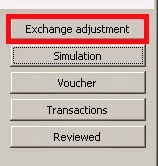
To run the exchange adjustment, click on the Exchange Adjustment button in the form:

The parameters on the form:


Method: Standard
Considered Date and Date of Rate: As required
Use posting profile from: Select the posting profile that is used for the exchange adjustment transactions:
  • Posting – The posting profile of the vendor transaction is used.
  • Select - The posting profile is determined by the posting profile in the Posting profile field.
Posting Profile: If Select is selected in the Use posting profile from field, the posting profile of the exchange adjustment transactions is determined by the posting profile specified in this field.

Select among the posting profiles that have been set up for the company in the Posting profiles form.

Dimension: Select the kind of dimensions that are posted on the exchange adjustment transactions:
  • None - No dimensions are posted on the exchange adjustment transactions.
  • Table - The dimensions of the vendor account are posted on the exchange adjustment transactions.
  • Posting - The dimensions of the transaction that is being adjusted are posted on the exchange adjustment transactions.
Print: Select this check box to print a report with details about this run of the exchange adjustment.
This report is printed on the go and is not saved in AX for future reference.

Transaction Text and Notes: These fields are for Users to enter any remarks or comments regarding the Adjustment.

Click OK to run the Adjustment.

The Exchange Adjustments are now successfully posted.

View Exchange Adjustment Transactions:

Once the Exchange Adjustment is run, the Transactions and the Vouchers posted can be verified.

To view the Ledger Transactions posted by the Exchange Adjustment, select the Adjustment entry that was created and Click on the Voucher Button in the Exchange Adjustment Form.

In order to view the Customer or Vendor Transactions posted by the Adjustment, Click on the Transactions Button on the form.


P.S. Leave your comments below :)

Tuesday, February 10, 2015

Supply Chain Functions


Supply Chain is a broader umbrella of the Trade and Logistics functionality in AX. Here are a few questions that are addressed by the Supply Chain functionality...

Demand Forecasting - 
What is the expected demand in the foreseeable future

Supply Forecasting - 
How much to manufacture/ procure to meet the demands

Product Procurement - 
When to buy, how much to buy, from whom to buy and when to buy.

Transportation Procurement - 
Who will do it, what are the costs

Transportation Planning - 
What will be the routes, the products shipped together, stacking and storage on the transport, stops and pickups on the route.

Transportation Management - 
What are the total costs, minimal cost routes, feasibility, tracking and modes of transport

Trade Compliance - 
Licencing and Legal compliance, trade permits, docking, cross-border compliance

Inventory Management - 
Warehousing, Logistics, Locations, Stocks to keep, Inventory Classifications, Costs, product movement principles, maintenance and expenses, arrivals and issues, counting and tracking

Order Management - 
What is the Order processing time, time to ship/ receive, scheduling orders, blanket orders, subscription management, payments and returns

Customer Management - 
What are the customer preferences, personal details (birthdays, anniversaries), account, shopping habits, experience surveys and ratings

These are just a few queries that are addressed. However, there is an ocean of capabilities where Supply Chain is concerned. All it takes is a little bit of understanding and applying.

Happy Daxing :)