Showing posts with label Axapta. Show all posts

Thursday, February 12, 2015

Exchange Adjustment - AX 2009

When multiple currencies are used, the exchange rate for the original transaction currency might differ from the exchange rate that is used during the conversion to the accounting currency. To recognize these differences in the exchange rate, the amounts in the main accounts have to be adjusted. The process that is used to make those adjustments is called a foreign currency revaluation or an Exchange Adjustment.

Revaluation can be done in Accounts Payable, Accounts Receivable and General Ledgers. However, the General rule of thumb is to perform the revaluation in the Accounts Payable and Accounts Receivables.

It is not suggested to perform Revaluation for Vendor and Customer Transactions in the General Ledger Module as these transactions will not reflect in the AP and AR modules respectively. Hence, Currency Revaluation is done for Accounts Payable and Accounts Receivables modules.


Prerequisites:

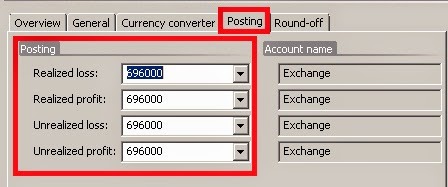
Before you can perform an exchange adjustment, the profit and loss ledger accounts for exchange adjustments must be. This setup is done in the General Ledger

Path: General ledger >> Setup >> Exchange rates >> Posting tab.

These accounts are essential to be setup in case when the organisation is dealing with multiple currencies.
Note: It is not necessary to use the same accounts for all the postings. Multiple accounts can also be used, depending on Company policy.

Revaluation process will generate unrealized gains/ losses whereas Settlement will generate realized gains/ losses.

Once these accounts are setup, the Exchange Adjustment can be carried out. These accounts must be setup for all the currencies that will be used.

Exchange Adjustment:

The procedure to run the Exchange Rate Adjustment is the same in Accounts Payable and Accounts Receivables Modules. The Exchange Adjustment is run from the Periodic Section in both the Modules.

Path: Accounts Payable >> Periodic >> Exchange Adjustment

Simulate an Exchange Adjustment:

Simulation is carried out to analyze the adjustments that will be made to the respective accounts after Revaluation. The simulation generates a report with all the entries and adjustments that will be made when the actual adjustment is carried out.

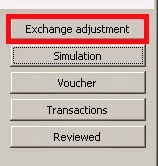
To run a Simulation, click on Simulation Button on the Exchange Adjustment Form
The following parameters need to be selected:
  • Method
  • Considered Date
  • Date of Rate

In the Method field, the following options are available:
  • Standard - Make exchange adjustments based on the Exchange rate used on the date specified in the Date of rate field.
  • Minimum - Make an exchange adjustment if a loss occurs, but not if a profit exists.
  • Invoice date - The program offsets any exchange adjustment that is not already offset, as on the date of Invoice. This causes the transaction being valued at its original value.
The Considered Date is the Date up to which the system has to fetch the “Not Settled” (Open) transactions to perform the exchange adjustment for.

The Date of Rate is the date to be considered for the exchange rate.

The default method is Standard.
The Considered Date and Date of Rate are usually the same date.

After the parameters are selected and the dates are entered, Click on OK.
The Simulation will generate a report with the adjustments that will be made if the Exchange adjustment is run. This report is used to analyze the differences and postings that will be made to the different Vendor/ Customer Accounts. 

Once the postings are verified, the Exchange Adjustment can be carried out.

Run an Exchange Adjustment:

To run the exchange adjustment, click on the Exchange Adjustment button in the form:

The parameters on the form:


Method: Standard
Considered Date and Date of Rate: As required
Use posting profile from: Select the posting profile that is used for the exchange adjustment transactions:
  • Posting – The posting profile of the vendor transaction is used.
  • Select - The posting profile is determined by the posting profile in the Posting profile field.
Posting Profile: If Select is selected in the Use posting profile from field, the posting profile of the exchange adjustment transactions is determined by the posting profile specified in this field.

Select among the posting profiles that have been set up for the company in the Posting profiles form.

Dimension: Select the kind of dimensions that are posted on the exchange adjustment transactions:
  • None - No dimensions are posted on the exchange adjustment transactions.
  • Table - The dimensions of the vendor account are posted on the exchange adjustment transactions.
  • Posting - The dimensions of the transaction that is being adjusted are posted on the exchange adjustment transactions.
Print: Select this check box to print a report with details about this run of the exchange adjustment.
This report is printed on the go and is not saved in AX for future reference.

Transaction Text and Notes: These fields are for Users to enter any remarks or comments regarding the Adjustment.

Click OK to run the Adjustment.

The Exchange Adjustments are now successfully posted.

View Exchange Adjustment Transactions:

Once the Exchange Adjustment is run, the Transactions and the Vouchers posted can be verified.

To view the Ledger Transactions posted by the Exchange Adjustment, select the Adjustment entry that was created and Click on the Voucher Button in the Exchange Adjustment Form.

In order to view the Customer or Vendor Transactions posted by the Adjustment, Click on the Transactions Button on the form.


P.S. Leave your comments below :)

Tuesday, February 10, 2015

Supply Chain Functions


Supply Chain is a broader umbrella of the Trade and Logistics functionality in AX. Here are a few questions that are addressed by the Supply Chain functionality...

Demand Forecasting - 
What is the expected demand in the foreseeable future

Supply Forecasting - 
How much to manufacture/ procure to meet the demands

Product Procurement - 
When to buy, how much to buy, from whom to buy and when to buy.

Transportation Procurement - 
Who will do it, what are the costs

Transportation Planning - 
What will be the routes, the products shipped together, stacking and storage on the transport, stops and pickups on the route.

Transportation Management - 
What are the total costs, minimal cost routes, feasibility, tracking and modes of transport

Trade Compliance - 
Licencing and Legal compliance, trade permits, docking, cross-border compliance

Inventory Management - 
Warehousing, Logistics, Locations, Stocks to keep, Inventory Classifications, Costs, product movement principles, maintenance and expenses, arrivals and issues, counting and tracking

Order Management - 
What is the Order processing time, time to ship/ receive, scheduling orders, blanket orders, subscription management, payments and returns

Customer Management - 
What are the customer preferences, personal details (birthdays, anniversaries), account, shopping habits, experience surveys and ratings

These are just a few queries that are addressed. However, there is an ocean of capabilities where Supply Chain is concerned. All it takes is a little bit of understanding and applying.

Happy Daxing :)

Sunday, February 8, 2015

Transactions in AX

The every day activities of a business are "stored" in the system as transactions. It is these transactions that are summarized to provide the management with a view of the business, what is happening and what is forecast for the foreseeable future.

Every entry in the system is a transaction and these transactions are recorded by a process known as "posting".

A "posted" transaction is one that has been recorded in the system and will reflect the impacts.

Before a transaction is posted in the system, a New Fiscal year must be created. The  Fiscal year must then be divided into periods. No transactions can be posted unless a period is created for the date of posting.

AX posts transactions according to dates as opposed to periods. Each transaction has a posting date attached to it. The dates are the basis for summarizing the transactions in a period/ year.

Periods are equal length intervals in a fiscal year. Usually, a fiscal year is divided into 12 periods, one for each month. These are called accounting periods.

In AX, however, 2 additional periods are created for every fiscal year. These are Opening and Closing Periods. These are used to record the closing and opening balances for the year.

The accounting periods are used to record the daily transactions in the system. No entries can be made in the opening and closing periods.

This is a short summary of a very important process. More details in the posts that follow :)


.

Tuesday, February 3, 2015

Prices and Discounts

AX allows businesses to define price - discount combinations for different combination of Items and Vendors/ Customers. These prices are fetched when Orders are processed against the Items/ Vendors/ Customers for whom the price/ discount has been defined.

There can be different Prices and Discounts defined for different combination of Vendors, Customers and Items. The system uses a predefined sequence of searching to find the prices and apply to the transaction lines.

Below is the sequence followed by AX to determine the prices/ discounts applicable for the Order Lines.
Note: The sequence is same for Customers and Vendors. Below is sequence for Vendors. The same sequence is applicable for Customers.

Sequence of finding a Price:


Vendor (table) - Item + Size (table)
Vendor group (group) - Item + Size (table)
All Vendors (all) - Item + Size (table)

Vendor (table) - Item (table)
Vendor group (group) - Item (table)
All Vendors (all) - Item (table)

Sequence of Finding Discount:


Vendor (table) - Item + Size (table)
Vendor (table) - Item (table)
Vendor (table) - Item group (group)
Vendor (table) - All Items (all)

Vendor group (group) - Item + Size (table)
Vendor group (group) - Item (table)
Vendor group (group) - Item group (group)
Vendor group (group) - All Items (all)

All Vendors (all) - Item + Size (table)
All Vendors (all) - Item (table)
All Vendors (all) - Item group (group)
All Vendors (all) - All Items (all)

Note: The labels table, group and all specified in brackets refer to the Account Type field while specifying the Prices and Discounts.

The system picks the first available Price/ discount from the tables based on this sequence. The dates during which the Prices and discounts are applicable is the criteria for filtering multiple lines with the same combination.

There can never be mote than one price/ discount applicable for the same Item - Vendor combination unless the start date and end dates are different. In case there is another defined price/ discount for the Item-Vendor combination defined earlier, the system considers the previous definition to be null from the date when the new definition is applicable.

More on AX in future.
:)

Sunday, February 1, 2015

Year End Closing - AX 2009


Year End Closing is an inevitable process for all businesses. Yet, many of us are not completely aware of the details of the task in AX.

Following are the details of the process in AX 2009:

Prerequisites to Fiscal Year-End Close
  • Related General Ledger Parameters for Fiscal Year Close:
  • Set the Periods status to ‘STOPPED’: 
  • Periods form – Module status tab 

Make any adjusting entries by using the general journal
Transfer Opening Balances


Prerequisites to Fiscal Year-End Close:


1. Run the Inventory Close process through the end of the fiscal year. 

Path: Inventory Management >> Periodic >> Closing and Adjustment

The Inventory Close process will take into account the Inventory Valuation selection you have selected on the Inventory Model Group from the Weighted Average Method that is used during the month.

2. Create a new Fiscal Year 

Path: General Ledger >> Setup >> Periods >> Periods 

Create the next Fiscal Year that you will be creating transactions for. This step may have been done previously if the Fiscal Year is not closed right at Year End. 

3. Set the appropriate Periods to Stopped in the current Fiscal Year. Also Open the Closing Period to allow posting of the Closing Entries. 

Path: General Ledger >> Setup >> Periods >> Periods

Change the status of any period that should not have further transactions posted to it to Stopped. In case the period is set to Stopped, it can be reopened. Change the status to Closed only if there is no possibility of any transactions being posted to this period.
Note: A Closed Period may can not be reopened.

4. Backup Data. 

Backup the Ax data. 

5. Make Adjusting Entries. 

Make adjusting entries by passing Journals where necessary

6. Print final Financial Statements. 

Path: General Ledger >> Reports >> Periodic >> Financial Statement

Print the Final Financial Statements. This would include the Cash Flow Statement, Statement of Stockholder's Equity, Profit and Loss Statement (Income Statement), and Balance Sheet. 

7. Print 1099s for any Vendor that requires a 1099 statement. 

Path: General Ledger >> Periodic >> Tax 1099 >> Report 1099 

For any Vendor that requires a 1099 statement, please be sure to set up the 1099 forms as well as the Vendor. Please note that 1099 reports can be reprinted. 

8. Transfer Opening Balances into the new Fiscal Year. 

Path: General Ledger >> Periodic >> Fiscal Year Close >> Opening Transactions

Use this job to move the Balance\Asset Account Balances forward into the New Fiscal Year. This job will also move the balances of your Profit & Loss\Cost\Revenue accounts to the Year-end Result account which is set up in the System Accounts (General Ledger >> Setup >> Posting >> System Accounts).

Related General Ledger Parameters for Fiscal Year Close:


Path: General Ledger >> Setup >> Parameters >> Ledger Tab

  • Delete close-of-year transactions during transfer:

If this check box is selected, opening transactions and system-generated closing transactions that exist for the year to be closed are deleted when the transfer is processed again (process is repeated), in the Opening Transactions form. So with this selection, we can process the transfer multiple times, if needed, while Opening entry will be only one.

  • Create closing transactions during transfer:

If this check box is selected, the system creates closing transactions when running the Opening Transactions job. In that case, the system posts closing transactions to all profit and loss accounts and all balance accounts, although Opening Transactions are posted on balance accounts only.
  • Set period status to year closed:

If this check box is selected, the system displays a status of Year closed for all fiscal periods for the year that is being closed (when you run the ‘Opening Transactions’ job).

NOTE: Care should be taken while selecting this check box, as we may have to run Opening Transactions job several times.
  • Voucher number must be filled in:

If this check box is selected, a voucher number must be entered when opening transactions are created for a new fiscal year.

Set the Periods status to ‘STOPPED’:


When we create a new fiscal year, we may have to control or stop transactions from updating to the ledger accounts during the closing process. To stop transactions set the period(s) to Stopped status.

Periods form – Module status tab


Close all the modules, except for the General Ledger during the closing process. Often only allow for specific user groups to enter transactions and leave the period open.
To set up module status for every module, go to the Module status tab on the Periods form and select the User group in the Module user group filed area who can update the respective module.

Note: Open the year-end closing period in the fiscal year being closed to enable posting of any necessary closing entries.

Make any adjusting entries by using the general journal:


Print the trial balance in order to look for any variations and make adjustments before closing the period.

Transfer Opening Balances:


Transfer opening balances into the new fiscal year.
  • In the opening transactions process, System creates a line for the opening transaction which makes up the opening balance for the New Year.
  • The system also creates a transaction for each currency and dimension. It is necessary to maintain this to keep statistics and financial reporting. You can transfer balances as frequently as needed during the year-end close process.
I Path: General Ledger >> Periodic >> Fiscal year close >> Opening transactions

II Enter the End date of the fiscal year

III Profit and loss accounts are always reset by the system. You must specify the transfer method for the balance sheet accounts. In the balance accounts fields, you should specify one of the following two options:
  • Reset: Reset the balance accounts and enters the opening balances for the balance sheet accounts manually.
  • Closing > Opening: continues with the balance sheet accounts, and has the opening transactions created automatically by the system.
IV Enter the ‘Account for transfer of year-end result’ in the system account.

V Enter the Voucher number for the opening transactions that are created automatically.
Click OK when all the fields are entered. This process may take several minutes, depending on the amount of data.

When the process is complete, check the account balances or print the Trial balance. You can run the year-end job as many times as needed. The opening balances will update correctly.


:)